Triggering backups using the Event Handling System (EHS)#
| Activity name | Triggering backups using the SR OS Event Handling System (EHS) |
|---|---|
| Short Description | In this activity you'll configure the SR OS nodes to trigger remote backups using the SR OS Event Handling System (EHS) every time a successful commit is issued. |
| Activity ID | 56 |
| Tools used | SR OS Python pySROS |
| Difficulty | Intermediate |
| Topology Nodes | PE1 |
| References | Functions for the Event Handling System (EHS) pySROS as a Model-driven SR OS interface Event Handling System (EHS) documentation SR OS documentation Nokia YANG browser |
You are a Network Engineer responsible for a multi vendor network and you are working on a project to deploy SR OS nodes in your network. You have already installed, configured and integrated the nodes in the existing network, and the next step before it's ready for production is to integrate the nodes in the management systems. You have been tasked with automatically backing up router configurations to a central platform each time a configuration change is made.
In this activity you'll configure the SR OS nodes to trigger remote backups using the SR OS Event Handling System (EHS) every time a successful commit is issued.
When you are operating a network, it is the recommended best practice to enable the automatic saving of the configuration every time a commit is made. While this can be achieved with a system configuration setting, there is still an inherent risk of losing your changes should the router fail. There is a well-known 3-2-1 rule, which is good practice to follow. This rule says that you should maintain:
- 3 copies of the data
- 2 different media types
- 1 copy offsite
SR OS natively supports writing the configuration files to multiple locations by using the primary, secondary and tertiary directives in the BOF configuration (more information here). In this case we want to push the requirements further.
In addition to storing configuration in multiple locations, we also require the config files to include the username of the user who committed the configuration, the timestamp and the IP address from which the node was configured. This is a common requirement from security teams.
Implement a mechanism that copies the locally stored configuration to a remote location on every commit, effectively providing both backup and audit capabilities for the SR OS device configuration.
You will initially use PE1.
1. Technology explanation#
The Event Handling System (EHS) is a framework that allows operator-defined behavior to be configured on the router.
EHS adds user-controlled programmatic exception handling by allowing the execution of either a CLI script or a Python application when a log event (the "trigger") is detected.
Python applications are fully supported and use the SR OS model-driven interfaces and the pySROS libraries to obtain and manipulate state and configuration data, as well as pySROS API calls to execute YANG-modeled operations and, as a last resort, unstructured MD-CLI commands.
pySROS and unstructured MD-CLI commands
While it is possible to use unstructured MD-CLI commands in pySROS via the cli() method, Nokia recommends using the action() method (YANG-modeled operations) whenever possible instead.
pysros.ehs – Functions for the Event Handling System (EHS)
The pysros.ehs module is available when executing on SR OS only. On a remote machine, the event handling system (EHS) and its functionality are not supported.
In this activity you will use the Event Handling System to trigger a copy of the startup configuration file to a remote location every time a commit is done.
2. Tasks#
You should read these tasks from top-to-bottom before beginning the activity.
It is tempting to skip ahead but tasks may require you to have completed previous tasks before tackling them.
2.1 Event Handling base configuration#
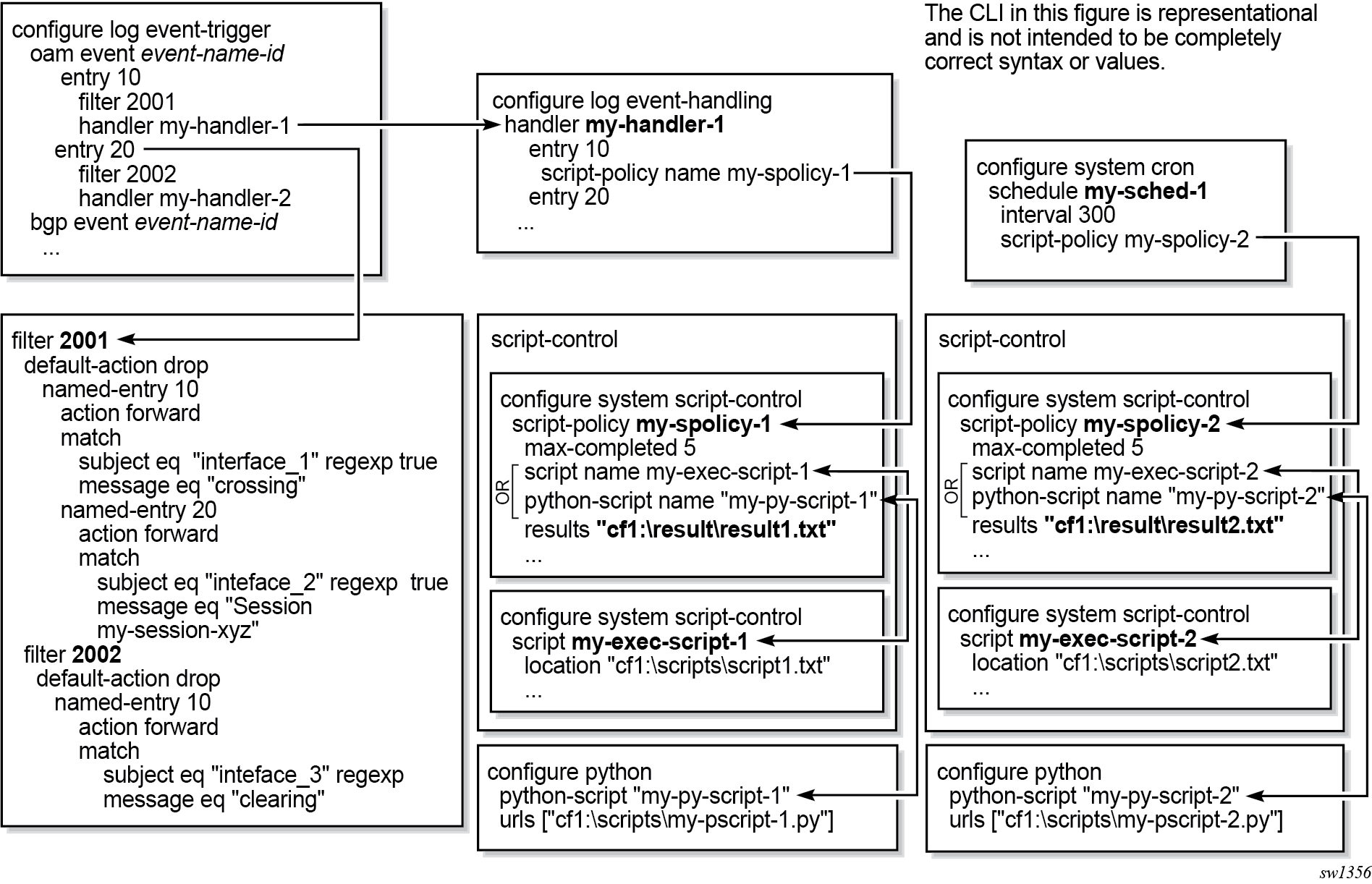
First you need to enable the Event Handling System (EHS) to use a pySROS script. There are seven steps to do this. This is the summary of the steps you will need to go through:
- Create a Python file
- Configure the location of your Python pySROS script
- Make a directory in
cf3: - Create a
script-policy - Configure a
log filter - Configure the
event-handling handler - Configure the
log event-trigger
The following diagram shows the relationships between the different configurable objects used by EHS:
2.1.1 Create the Python file#
Start by creating an ehs.py pySROS script. For now, this will be an empty Python file with the main() definition. you will implement the required logic in the next task.
On the SR OS node, you can store the file locally in cf3:\, which is the root directory of compact flash device 3. This location is typically used for system-related files such as configurations, images, and boot data.
Since the SR OS device is running as a container (SR-SIM) on your group’s hackathon instance, you can access the contents of cf3:\ directly from that instance. The location is ~/SReXperts/clab/clab-srexperts/pe1/A/config/cf3/.
Create a file in that location:
from pysros.management import connect

def main():
    pass

if __name__ == "__main__":
    main()
A:admin@g1-pe1# file list cf3:

Volume in drive cf3 on slot A has no label.

Directory of cf3:\

04/29/2026  05:55p      <DIR>          .commit-history/
04/29/2026  05:55p                 292 bof.cfg
04/29/2026  05:55p                2714 bootlog.txt
04/29/2026  05:55p               33488 config.cfg
04/29/2026  05:55p               33696 config.cfg.1
05/06/2026  01:06p                  99 ehs.py
04/29/2026  05:55p             8096480 i386-isa-aa.tim
04/29/2026  05:55p                 888 license.txt
04/29/2026  05:55p                 309 nvsys.info
04/29/2026  05:55p                   1 restcntr.txt
04/29/2026  05:55p             6368080 yang.tim
              10 File(s)               14535948 bytes.
               1 Dir(s)            159235264512 bytes free.
2.1.2 Configure the location of Python script#
Configure the location of the ehs.py pySROS script that will be triggered by EHS. You will use the cf3:ehs.py file that was created in the previous step. In SR OS this is configured under the /configure python python-script path. You can name your python-script "ehs"
If you need assistance click here
The Python Script configuration can be verified and inspected using following command:
Your script should appear inService for both Admin stateand Oper state.
2.1.3 Make a directory in cf3: to store the results of the EHS execution#
Create a folder named ehs in the cf3: location. The output of the EHS scripts will be stored in this folder.
ehs folder you have just created is also visible from your group’s hackathon instance. bash$:~$ ls -al ~/SReXperts/clab/clab-srexperts/pe1/A/config/cf3/
total 14252
drwxrwxr-x+ 4 sivasusi docker 4096 May 6 13:19 .
drwxrwxr-x+ 5 root root 4096 Apr 29 17:55 ..
drwxrwxr-x+ 2 sivasusi docker 4096 Apr 29 17:55 .commit-history
-rw-rw-r--+ 1 sivasusi docker 292 Apr 29 17:55 bof.cfg
-rw-r--r--+ 1 sivasusi docker 2714 Apr 29 17:55 bootlog.txt
-rw-r--r--+ 1 sivasusi docker 33488 Apr 29 17:55 config.cfg
-rw-rw-r--+ 1 sivasusi docker 33696 Apr 29 17:55 config.cfg.1
drwxrwxr-x+ 2 sivasusi docker 4096 May 6 13:19 ehs
-rw-rw-r--+ 1 nokia nokia 21 May 6 13:06 ehs.py
-rwxr-xr-x+ 1 sivasusi docker 8096480 Apr 29 17:55 i386-isa-aa.tim
-rw-r--r--+ 1 sivasusi docker 888 Apr 29 17:55 license.txt
-rw-rw-r--+ 1 sivasusi docker 309 Apr 29 17:55 nvsys.info
-rw-rw-r--+ 1 sivasusi docker 1 Apr 29 17:55 restcntr.txt
-rwxr-xr-x+ 1 sivasusi docker 6368080 Apr 29 17:55 yang.tim
nokia@1:~$
2.1.4 Create a script-policy#
A script-policy needs to be created. A script policy can be configured to allow an EHS script to override datastore locks from any model-driven interface (this isn't generally recommended). It is the central control object that makes a script executable, it ties a configured script (CLI or Python) to the system that triggers it, whether that is an EHS event handler (as is the case here) or a CRON schedule. In the script-policy you will also define the location where the output/results of each script execution will be written (the folder that was created in step 3). Configure your script-policy under the /configure system script-control path.
If you need assistance click here
The script-policy configuration can be verified and inspected using following command:
Your script-policy should appear enabled for both Administrative statusand Operational status.
2.1.5 Configure a log filter#
We can configure complex rules to match log events as the trigger for EHS. Log filters can act as an additional "gate" with its own match criteria (e.g., severity, subject, message content). In this exercise the filter will capture all the logs.
Configure a log filter under /configure log filter path that captures all the logs.
If you need assistance click here
2.1.6 Configure the event-handling handler#
To connect the script-policy to an event that can be triggered through logs, the event-handling handler needs to be configured.
Configure a handler under the /configure log event-handling handler path.
If you need assistance click here
2.1.7 Configure the log event-trigger#
Finally configure the log event-trigger that connects the filtered logs to the event handler. In the event-trigger you need to define which system event is the one that will trigger the handler. In our case you are interested in commitevents.
To make it easier, the log filter configured in the previous step captures all logs. Depending on the type of event you want to use as a trigger, you could also define additional matching criteria to further filter the logs.
You can find the list of supported events in the documentation or using the Log Events Search Tool.
The event-trigger is configured under the /configure log event-trigger path.
If you need assistance click here
The infrastructure of the EHS is ready now to be used for triggering a Python application.
The EHS configuration can be verified and inspected using following commands:
EHS Configuration Verification
A:admin@g1-pe1# show python python-script "ehs"

===============================================================================
Python script "ehs"
===============================================================================
Description   : (Not Specified)
Admin state   : inService
Oper state    : inService
Oper state
(distributed) : inService
Version       : python3
Action on fail: drop
Protection    : none
Primary URL   : cf3:ehs.py
Secondary URL : (Not Specified)
Tertiary URL  : (Not Specified)
Active URL    : primary
Run as user   : (Not Specified)
Code size     : 36
Last changed  : 05/07/2026 13:49:47
===============================================================================
A:admin@g1-pe1# show system script-control script-policy "ehs" owner "admin"

===============================================================================
Script-policy Information
===============================================================================
Script-policy                : ehs
Script-policy Owner          : admin
Administrative status        : enabled
Operational status           : enabled
Script                       : N/A
Script owner                 : N/A
Python script                : ehs
Source location              : cf3:ehs.py
Results location             : cf3:/ehs/
Max running allowed          : 1
Max completed run histories  : 1
Max lifetime allowed         : 0d 01:00:00 (3600 seconds)
Completed run histories      : 1
Executing run histories      : 0
Initializing run histories   : 0
Max time run history saved   : 0d 01:00:00 (3600 seconds)
Script start error           : N/A
Python script start error    : N/A
Last change                  : 2026/05/07 13:50:29  UTC
Max row expire time          : never
Last application             : event-script-python
Last auth. user account      : not-specified

===============================================================================
Script Run History Status Information
-------------------------------------------------------------------------------
Script Run #1
-------------------------------------------------------------------------------
Start time    : 2026/05/07 13:51:08  UTC
End time      : never
Elapsed time  : 0d 00:00:00             Lifetime      : 0d 00:00:00
State         : terminated              Run exit code : noError
Result time   : 2026/05/07 13:51:08  UTC
Keep history  : 0d 00:59:42
Error time    : 2026/05/07 13:51:08  UTC
Source file   : cf3:ehs.py
Results file  : cf3:/ehs/_20260507-135107-UTC.682676.out
Run exit      : Success
Error         : N/A
Application   : event-script-python     Auth. user ac*: not-specified
* indicates that the corresponding row element may have been truncated.
===============================================================================
A:admin@g1-pe1# show log event-handling handler "ehs"

===============================================================================
Event Handling System - Handlers
===============================================================================

===============================================================================
Handler          : ehs
===============================================================================
Description      : (Not Specified)
Admin State      : up                                Oper State : up

-------------------------------------------------------------------------------
Handler Execution Statistics
Success        : 1
Err No Entry   : 0
Err Adm Status : 0
Total            : 1

-------------------------------------------------------------------------------
-------------------------------------------------------------------------------
Handler Action-List Entry
-------------------------------------------------------------------------------
Entry-id         : 10
Description      : (Not Specified)
Admin State      : up                                Oper State : up
Script
Policy Name    : ehs
Policy Owner   : admin
Min Delay        : 0
Last Exec        : 05/07/26 13:51:08 UTC
-------------------------------------------------------------------------------
Handler Action-List Entry Execution Statistics
Success        : 1
Err Min Delay  : 0
Err Launch     : 0
Err Adm Status : 0
Total            : 1
===============================================================================
You may see that the Python script script-policy is enabled and has already had a few executions. You may check out the log files in the cf3:/ehs directory to look for any interesting outputs. If your ehs.py doesn't have any effect yet, these files will be empty and the executions you see will not have had any results.
2.2 Create the backup folder#
The purpose of this activity is to store device configuration backups outside of the device file system. To do so, you will first need to create a remote backup location that is reachable from the SR OS device. For example, you can use your hackathon instance that runs in the lab as a backup server (<groupID>.srexperts.net).
While logged in to your group’s hackathon instance as the nokia user, create the ~/backups directory. This can be done using the mkdir ~/backups command
2.3 Develop the pySROS script ehs.py using the pysros.ehs module#
Before jumping into the steps below, make sure to review the following documentation references and code editor information.
Using the following documentation references, implement the required backup functionality:
- Functions for the Event Handling System (EHS)
- pySROS as a model-driven SR OS interface
- Event Handling System (EHS) documentation- SR OS documentation
- Nokia YANG browser
For writing the script, we recommend using vim or nano. These editors are already installed in your group’s hackathon instance. You can also use Visual Studio Code (VS Code) if you prefer a graphical editor.
Since the SR OS device is running as a container (SR-SIM) on your group’s hackathon instance, you can access the contents of its file system directly from that instance. The location is ~/SReXperts/clab/clab-srexperts/pe1/A/config/cf3/ehs.py.
Before starting your implementation, take note that you will need to reload the source code into the python-script object in the memory of the router every time you change your script. The version in memory isn't updated automatically. Use the following command:
To view the script version currently loaded in memory you can use the following show command:
Now that everything is ready, every time you commit your configuration the EHS will trigger an execution of your pySROS script. You can verify this using the EHS verification commands reviewed above and by inspecting the ~/SReXperts/clab/clab-srexperts/pe1/A/config/cf3/ehs folder on your hackathon instance for files generated by the script.
The following intermediary steps can help guide your approach:
-
Determine how to copy the node configuration to the hackathon instance using the SR OS CLI. The hackathon instance is running a SSH-Server (with sftp-server subsystem enabled), so the SFTP protocol can be used.
If you need assistance click here
A:admin@pe1# file copy cf3:/config.cfg "sftp://nokia:<event password>@<groupID>.srexperts.net:/home/nokia/backups/" force
The authenticity of host '10.128.1.1' can't be established.
ECDSA key fingerprint is SHA256:nHtO7uNkkoh602bY4CZXsm/4Y0Wo0OjJ6kBnUvQKfkc.
ECDSA key fingerprint is MD5:34:59:6a:bd:07:66:a1:12:7c:83:55:90:bb:1d:8b:be.
Are you sure you want to continue connecting (yes/no/[fingerprint])? yes

Copying file cf3:/config.cfg ... OK
0 dir(s) and 1 file(s) copied.
1 file copied.
Once you test this file copy, you will notice that the first SFTP connection triggers a fingerprint prompt. In a production-grade configuration, you would also want to add the ECDSA host public keys of the backup host using the
configure system security ssh client-known-hostscontext. -
Now that you know how to copy files, you have to instruct the Python pySROS script to execute it. If you are unsure how to implement it, you can use the following boilerplate code:
If you need assistance click here
""" Simple configuration backup script using pySROS. """ from pysros.management import connect from pysros.ehs import get_event # Configuration SFTP_DESTINATION = "sftp://nokia:<event password>@<groupID>.srexperts.net:/home/nokia/backups/" LOCAL_CONFIG_FILE = "cf3:/config.cfg" def main(): connection = connect() # Combine destination path with the configuration filename destination = "<complete SFTP destination path>" command = "file copy {} {} force".format(LOCAL_CONFIG_FILE, destination) connection.cli(command) if __name__ == "__main__": main() -
The remote file name should include the node identifier to keep the backups directory organized 😊. The node name is the
/system/oper-namefound in the node's state. A similar example can give you some ideas on how to extract the name of the node.You can also use the Nokia YANG browser to explore the YANG models of the SR OS and SR Linux platforms.
If you need assistance click here
""" Simple configuration backup script using pySROS. """ from pysros.management import connect from pysros.ehs import get_event # Configuration SFTP_DESTINATION = "sftp://nokia:<event password>@<groupID>.srexperts.net:/home/nokia/backups/" LOCAL_CONFIG_FILE = "cf3:/config.cfg" def main(): connection = connect() system_name = connection.running.get( "/nokia-state:state/system/oper-name" ).data # Combine destination path with the configuration filename destination = "<complete SFTP destination path>" command = "file copy {} {} force".format(LOCAL_CONFIG_FILE, destination) connection.cli(command) if __name__ == "__main__": main() -
Apart from the node hostname, the remote configuration name must contain the timestamp, the user who commited the config and the IP address from which the node was configured.
The function
get_event()provides access to the data generated by the event. To better understand the structure of this data, perform a commit in the SR OS CLI and then check the logs to see the type of event generated and it's associated data:[pr:/configure] A:admin@pe1# commit 2026-05-06T16:04:40.96+00:00 [pr:/configure] A:admin@pe1# show log log-id 99 descending =============================================================================== Event Log 99 log-name 99 =============================================================================== Description : Default System Log Memory Log contents [size=500 next event=52432 (wrapped)] 52431 2026/05/06 16:04:41.025 UTC WARNING: SYSTEM #2112 Base Configuration Save Succeeds "Complete configuration file saved in the background to: cf3:\config.cfg" 52430 2026/05/06 16:04:40.962 UTC WARNING: SYSTEM #2121 Base Commit "Commit to configure by admin (MD-CLI) from 10.128.1.1 succeeded."You can check the module documentation of
get_event()here.In our case the relevant
event-idisevent-id = 2121which refers to a successfulcommit.If you need assistance click here
""" Simple configuration backup script using pySROS. """ from pysros.management import connect from pysros.ehs import get_event # Configuration SFTP_DESTINATION = "sftp://nokia:<event password>@<groupID>.srexperts.net:/home/nokia/backups/" LOCAL_CONFIG_FILE = "cf3:/config.cfg" def main(): connection = connect() trigger_event = get_event() system_name = connection.running.get( "/nokia-state:state/system/oper-name" ).data if trigger_event.eventid == 2121: system_time = trigger_event.gentime # The event specific body, formatted as a string event_text = trigger_event.text # Combine destination path with the configuration filename destination = "<complete SFTP destination path>" command = "file copy {} {} force".format(LOCAL_CONFIG_FILE, destination) connection.cli(command) if __name__ == "__main__": main() -
At this stage you have everything needed to create the remote configuration filename. Combine the destination path with the filename so you can build the full command that copies the configuration.
If you need assistance click here
""" Simple configuration backup script using pySROS. """ from pysros.management import connect from pysros.ehs import get_event import re # Configuration SFTP_DESTINATION = "sftp://nokia:<event password>@<groupID>.srexperts.net:/home/nokia/backups/" LOCAL_CONFIG_FILE = "cf3:/config.cfg" def main(): connection = connect() trigger_event = get_event() system_name = connection.running.get( "/nokia-state:state/system/oper-name" ).data if trigger_event.eventid == 2121: system_time = trigger_event.gentime # The event specific body, formatted as a string event_text = trigger_event.text # pattern that grabs the non-space characters right after 'by' and 'from' pattern = r"by\s+(\S+).*?from\s+(\S+)" match = re.search(pattern, event_text) if match: username = match.group(1) ip_address = match.group(2) else: username = "unknown_user" ip_address = "unknown_ip" filename = "{}-config-{}-{}-{}.cfg".format(system_name, system_time, username, ip_address) destination = "{}{}".format(SFTP_DESTINATION, filename) command = "file copy {} {} force".format(LOCAL_CONFIG_FILE, destination) connection.cli(command) if __name__ == "__main__": main() -
If you have not done it before, now is the time to check if the config file is correctly copied to the target destination.
-
Your script currently may assume that everything works perfectly. In real environments, connections fail, events may be missing, and commands can return errors.
Update your script to handle these situations gracefully by adding appropriate exception handling. One of the reasons your script may fail is because the remote location is not available. Test this failure case by changing the name of the remote folder where configs are stored. We can do this by using the following command in your group’s hackathon instance:
If you now test a
commityou can see that in the~/SReXperts/clab/clab-srexperts/pe1/A/config/cf3/ehsfolder a new output execution file has appeared. That file contains the following output error:Traceback (most recent call last): File "ehs", line 45, in <module> File "ehs", line 41, in main SrosMgmtError: MINOR: MGMT_AGENT #2005: Invalid element value - destination "sftp://nokia:xxxx@@1.srexperts.net:/home/nokia/backups2/g1-pe1-config-2026-05-19T09:17:00.Z-admin-10.128.1.1.cfg"You can find more information about this error here.
Update your script to handle this
SrosMgmtErrorerror.If you need assistance click here
"""
Simple configuration backup script using pySROS.
"""

from pysros.management import connect
from pysros.ehs import get_event
import re
# Import the exceptions that are referenced so they can be caught on error.
from pysros.exceptions import SrosMgmtError
import sys

# Configuration
SFTP_DESTINATION = "sftp://nokia:<event password>@<groupID>.srexperts.net:/home/nokia/backups/"
LOCAL_CONFIG_FILE = "cf3:/config.cfg"

def main():
    connection = connect()
    trigger_event = get_event()

    system_name = connection.running.get(
        "/nokia-state:state/system/oper-name"
    ).data
    if trigger_event.eventid == 2121:
        system_time = trigger_event.gentime

        # The event specific body, formatted as a string
        event_text = trigger_event.text

        # pattern that grabs the non-space characters right after 'by' and 'from'
        pattern = r"by\s+(\S+).*?from\s+(\S+)"
        match = re.search(pattern, event_text)

        if match:
            username = match.group(1)
            ip_address = match.group(2)
        else:
            username = "unknown_user"
            ip_address = "unknown_ip"

        filename = "{}-config-{}-{}-{}.cfg".format(system_name, system_time, username, ip_address)

        destination = "{}{}".format(SFTP_DESTINATION, filename)

        command = "file copy {} {} force".format(LOCAL_CONFIG_FILE, destination)

        try:
            connection.cli(command)
        except SrosMgmtError as exception1:
            print("file copy failed:", exception1)
            sys.exit()

if __name__ == "__main__":
    main()
Test and make sure your code now handles this error condition properly and then restore the original backup directory:
2.4 Test#
This activity is completed when a user does commit and the config file is correctly copied to the target destination. The file must:
- Contain the changes that were made
- Contain the hostname, timestamp, username and IP address from which the node was configured (Important: the filename should be different every time the script is executed)
3. Summary#
Congratulations! If you've got this far you have achieved your goal of automating triggered configuration backups after each commit using the SR OS Event Handling System.
In this activity you have:
- Learned a little about the Event Handling System
- Interacted with SR OS using model-driven interfaces
- Created a Python script
- Saved your organization from potential data loss!