Triggering backups using the SR Linux Event Handler#
| Activity name | Triggering backups using the SR Linux Event Handler |
| Activity ID | 54 |
| Short Description | In this activity you'll configure the SR Linux nodes to trigger remote backups using the Event Handler framework every time a successful commit is issued. |
| Difficulty | Intermediate |
| Tools used | Python |
| Topology Nodes | leaf21 |
| References | Event Handler SR Linux configuration management Nokia YANG browser |
You are a Network Engineer responsible for a multi-vendor network and you are working on a project to deploy SR Linux nodes in your network. You have already installed, configured and integrated the nodes in the existing network, and the next step before it's ready for production is to integrate the nodes into the management systems. You have been tasked with automatically backing up router configurations to a central platform each time a configuration change is made.
In this activity you'll configure the SR Linux node to trigger remote backups using the Event Handler framework every time a successful commit is issued.
When you are operating a network, it is the recommended best practice to enable the automatic saving of the configuration every time a commit is made. While this can be achieved with a system configuration setting, there is still an inherent risk of losing your changes should the router fail. There is a well-known 3-2-1 rule, which is good practice to follow. This rule says that you should maintain:
- 3 copies of the data
- 2 different media types
- 1 copy offsite
Implement a mechanism that copies the locally stored configuration to a remote location on every commit, effectively providing both backup and audit capabilities for the SR Linux device configuration.
1. Technology explanation#
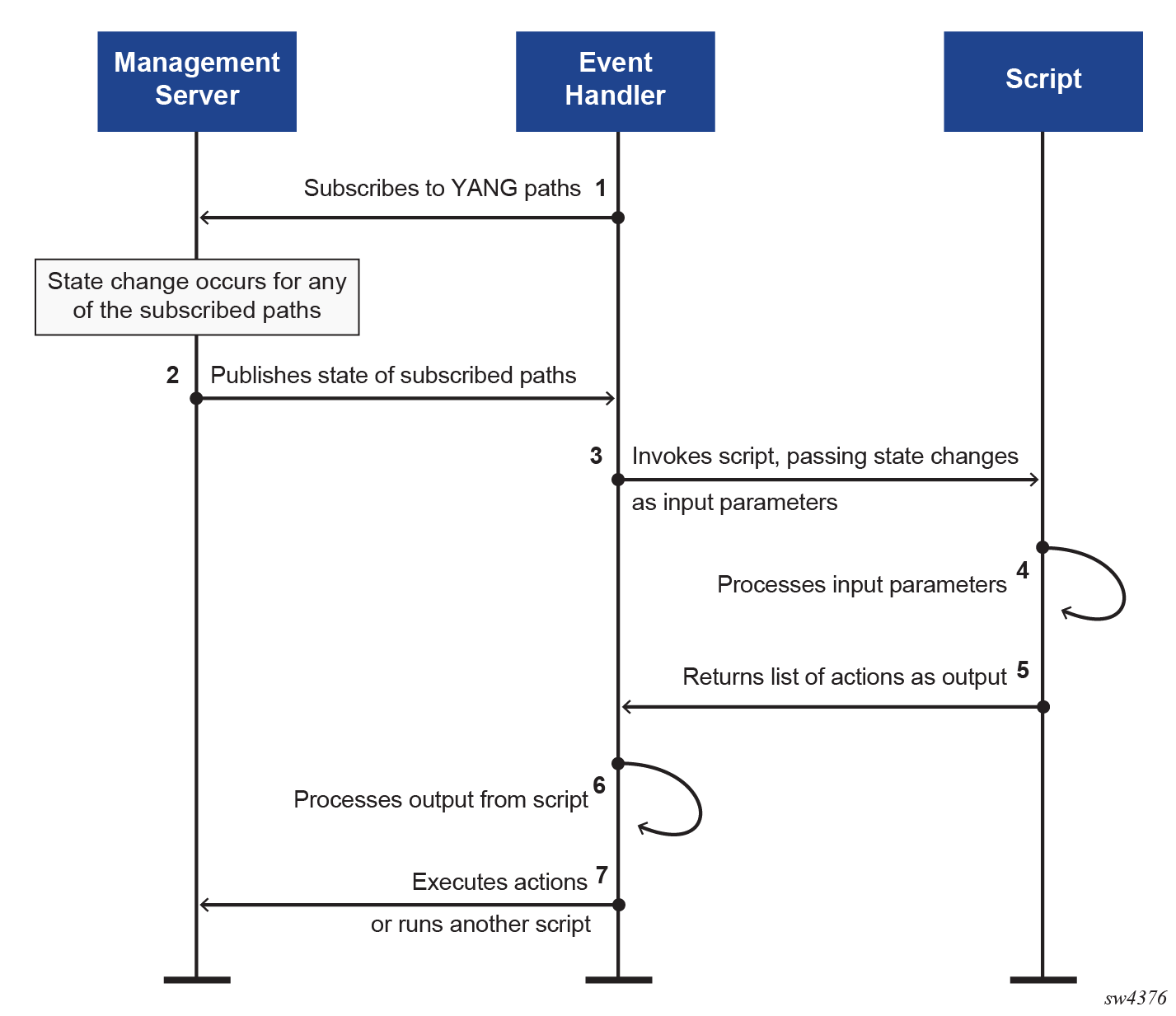
The Event Handler is a framework that enables SR Linux to react to specific system events using programmable logic to define the actions taken in response.
The framework operates in the following sequence:
- Event Handler is configured to subscribe to a set of YANG paths (e.g., operational state of interfaces).
- The SR Linux management server publishes state changes for the monitored paths.
- Event handler invokes a MicroPython script, passing path information and options as a JSON string.
- The script processes the input and returns a list of actions.
- Event handler executes the actions on the SR Linux device (e.g., set interface oper-state, run a tools command, or invoke another script).
The following diagram summarizes the operation of the Event Handler framework:
Further reading can be found using the links below should you need assistance, or if you're just interested to learn more:
- Event Handler documentation
- Configuration management documentation
- Nokia YANG Browser: Use this to look for gNMI paths
- Introduction to operational groups using Event handler: This tutorial gives an overview of a different use-case leveraging the Event Handler by shutting down all downlink interfaces when the BGP sessions to both route reflectors fails
2. Tasks#
You should read these tasks from top-to-bottom before beginning the activity.
It is tempting to skip ahead but tasks may require you to have completed previous tasks before tackling them.
2.1 Create the backup folder#
The purpose of this exercise is to store the device configuration backups outside of the device filesystem, you first need to create a remote backup location that is reachable from the SR Linux device. For example, you can use your group’s hackathon instance that runs the lab as a backup server (<groupID>.srexperts.net).
While logged in to your instance with the standard nokia user, create the ~/backups directory using the mkdir command.
2.2 Create the Event-Handler Python file#
In this activity you will use Leaf21. You may SSH to the sr_cli from your hackathon instance or login directly to the linux shell using the commands below. You may use the keywords sr_cli and bash to switch the context.
You need to create a Python event handling script on the target SR Linux device, and prepare the event handler configuration context that will execute the script.
First of all, create an empty Python event handler script file in Leaf21, you will populate it later:
- Enter the
bashshell on Leaf21 (if you haven't already done so) - Create the empty file
remote-backup.pyin the/etc/opt/srlinux/eventmgrlocation. This is a well-known directory where Event Handler scripts are to be stored - Make this file executable by running
chmod +x remote-backup.py
If you need assistance click here
Listing the contents of the directory should show the newly created empty file.
--{ running }--[  ]--
A:leaf21# bash
admin@leaf21:~$ cd /etc/opt/srlinux/eventmgr
admin@leaf21:/etc/opt/srlinux/eventmgr$ touch remote-backup.py
admin@leaf21:/etc/opt/srlinux/eventmgr$ chmod +x remote-backup.py
admin@leaf21:/etc/opt/srlinux/eventmgr$ ls -al
total 16
drwxrwxrwx+  2 srlinux srlinux  4096 Apr 27 15:11 .
drwxrwxrwx+ 14 srlinux srlinux  4096 Apr 27 14:43 ..
-rwxrwxrwx+  1 admin   ntwkuser    0 Apr 27 15:11 remote-backup.py
2.3 Create the Event Handler instance#
With the script file created, you can now create the Event Handler instance that will execute the script based on the "events".
Using the Event Handler documentation, try to create the router's configuration for the Event Handler context. It should contain the following:
- The location to the Python script you created above.
- A YANG path representing the last time the configuration was changed (tip: use the Nokia YANG browser)
- A static value indicating the backup destination (
nokia@<groupID>.srexperts.net:~/backups). This destination is meant to be used in the script to instruct where to copy the file to.
If you feel stuck, you can find a configuration snippet that you can paste in the CLI candidate mode in the expandable help section below. Use enter candidate to enter the configuration mode:
If you need assistance click here
You need to replace the tag <groupID> with your Group ID number. Note: Instead of the name <groupID>.srexperts.net you may also use the IP 10.128.<groupID>.1
{
    system {
        event-handler {
            instance backup-config-on-changes {
                admin-state enable
                upython-script remote-backup.py
                paths [
                    "system configuration last-change"
                ]
                options {
                    object target {
                        value [email protected].<groupID>.1:~/backups
                    }
                }
            }
        }
    }
}
2.4 Enabling key-based SSH authentication#
To copy the router's configuration file to the remote backup location, SR Linux can leverage it's underlying Linux operating system and the standard tooling it includes. This will let you use scp to copy files to remote locations. In this case, the remote location will be the directory you just created on the hackathon instance.
To ensure no password needs to be provided to the scp command, you need to set up key-based authentication first. To do so, you will generate a set of keys on SR Linux first, and then copy the public key to the hackathon instance.
Enter the bash shell of SR Linux again, and make use of the ssh-keygen command to generate the key pair and leave the passphrase empty.
Now that the keys are generated, copy the public key to the hackathon instance that hosts your lab with using ssh-copy-id command and the address of your hackathon instance.
You need to replace the tag <groupID> with your Group ID number.
Instead of the name <groupID>.srexperts.net you may also use the IP 10.128.<groupID>.1
ssh-copy-id -i ~/.ssh/id_rsa [email protected].<groupID>.1
The example below is for groupID 2, hence the address is [email protected].
ssh-copy-id -i ~/.ssh/id_rsa [email protected]
Now you can test if the password-less SSH access is working, by logging in to the hackathon instance address:
You need to replace the tag <groupID> with your Group ID number.
Instead of the name <groupID>.srexperts.net you may also use the IP 10.128.<groupID>.1
ssh -i ~/.ssh/id_rsa [email protected].<groupID>.1
The example below is for groupID: 2, hence the address is [email protected].
admin@leaf21:/home/admin# ssh -i ~/.ssh/id_rsa [email protected]
If all goes well, you should be logged in to the hackathon instance and see the prompt.
2.5 Develop the remote-backup.py script#
Using the documentation resources above, find a way to develop the requested backup functionality. A list of intermediary steps can be found below for inspiration:
- Parse the input paths and print their values
- Parse the input options and print their values
- Obtain the timestamp of the system's last configuration change (the configuration filename should include this timestamp so multiple versions can be stored for backup and audit purposes)
- Find the location where your SR Linux's configuration is being stored (hint: execute
save startupon your box) - Copy the startup configuration file to the target destination
For writing the script, we recommend using vim or nano. These editors are already installed in your group’s hackathon instance. You can also use Visual Studio Code (VSCode) if you prefer a graphical editor.
Since the SR Linux device is running as a container on your group’s hackathon instance, you can access the contents of its file system directly. The location is ~/SReXperts/clab/clab-srexperts/leaf21/config/eventmgr/.
Hint
You can instruct the event handler to run a bash script. The returned action list should contain a dictionary object with a key run-script. The value corresponding to that key should be a dictionary containing the key cmdline. The cmdline template is provided below. It contains several sets of curly braces with variable names that will be inserted when you provide them. For a hint on how to return this, closely inspect the returned format by the oper-group script
"cmdline": f"sudo ip netns exec srbase-mgmt /usr/bin/scp -i ~/.ssh/id_rsa -o StrictHostKeyChecking=no -o PreferredAuthentications=publickey {startup_config} {target}/config-{timestamp}.json"
Adding StrictHostKeyChecking=no disables SSH host key verification. It forces SSH to skip the interactive trust prompt and continue automatically.
There are two SR Linux commands that you will need during the development process:
- Reloading the python file after you've made changes to it:
/ tools system event-handler instance <instance> reload
- Checking the execution output of your script:
/ info from state system event-handler instance <instance>
Getting to know a new framework, even a slim one like Event Handler, can take time. If you just want to see it in action, peek into the solution below to see the resulting script. You can paste it in your remote-backup.py file created earlier.
Solution
The file is located in Leaf21 under /etc/opt/srlinux/eventmgr/remote-backup.py. From your hackathon instance view/edit directly at ~/SReXperts/clab/clab-srexperts/leaf21/config/eventmgr/remote-backup.py. Don't forget to reload the python file after you made changes.
vi preserve indentation with ":set paste"
In vi/vim, pasted text often gets auto-indented line by line, which can ruin the original formatting. The usual fix is to temporarily enable paste mode before pasting.
While in Insert mode:
- Press
Esc - Type
:set paste - Go back to Insert mode (
i) - Paste your text
- Press
Esc - Disable paste mode
:set nopaste
# Copyright 2026 Nokia
# Licensed under the BSD 3-Clause License.
# SPDX-License-Identifier: BSD-3-Clause

import json

def event_handler_main(in_json_str):
    in_json = json.loads(in_json_str)
    paths = in_json["paths"]
    options = in_json["options"]

    target = options.get("target", None)
    timestamp = None
    for p in paths:
        if p['path'] == "system configuration last-change":
            timestamp = p['value']

    if not timestamp:
        timestamp = "undefined"

    response = {
        "actions": [
            {
                "run-script": {
                    "cmdline": f"sudo ip netns exec srbase-mgmt /usr/bin/scp -i ~/.ssh/id_rsa -o StrictHostKeyChecking=no -o PreferredAuthentications=publickey /etc/opt/srlinux/config.json {target}/config-{timestamp}.json"
                }
            }
        ]
    }

    return json.dumps(response)
Use the commands below from the sr_cli to reload the python file and validate if there are no errors.
The following output shows the file reload and the status up with no errors.
--{ running }--[  ]--
A:admin@g51-leaf21# / tools system event-handler instance backup-config-on-changes reload
/system/event-handler/instance[name=backup-config-on-changes]:
    instance backup-config-on-changes reloaded


--{ running }--[  ]--
A:admin@g51-leaf21# info from state system event-handler instance backup-config-on-changes
    admin-state enable
    upython-script remote-backup.py
    oper-state up
    paths [
        "system configuration last-change"
    ]
    options {
        object target {
            value [email protected]:~/backups
        }
    }


--{ running }--[  ]--
The final validation is to list the backup files in the server. If you execute commits at Leaf21 you will see more files.
$ ls -al
total 544
drwxrwxrwx. 2 nokia nokia    182 May 14 11:47 .
drwx------. 5 nokia nokia    126 May 14 07:59 ..
-rw-r--r--. 1 nokia nokia 135409 May 14 11:13 config-2026-05-14T12:02:42.925Z.json
-rw-r--r--. 1 nokia nokia 135408 May 14 11:41 config-2026-05-14T15:23:30.097Z.json
-rw-r--r--. 1 nokia nokia 135408 May 14 11:46 config-2026-05-14T15:43:35.658Z.json
-rw-r--r--. 1 nokia nokia 135409 May 14 11:48 config-2026-05-14T15:47:48.891Z.json
2.6 Test#
This activity is completed when a user does commit save stay or save startup and the startup file is correctly copied to the ~/backups directory on your hackathon instance. The file must:
- Contain the changes that were made (hence the save to commit them to the startup file)
- Contain the timestamp of when the last change was done (Important: the name should be different every time the script is executed)
Hint
Debug prints using the print() function can be very helpful. Use them to trace values and understand your script’s behavior.
$ ls -al
total 544
drwxrwxrwx. 2 nokia nokia    182 May 14 11:47 .
drwx------. 5 nokia nokia    126 May 14 07:59 ..
-rw-r--r--. 1 nokia nokia 135409 May 14 11:13 config-2026-05-14T12:02:42.925Z.json
-rw-r--r--. 1 nokia nokia 135408 May 14 11:41 config-2026-05-14T15:23:30.097Z.json
-rw-r--r--. 1 nokia nokia 135408 May 14 11:46 config-2026-05-14T15:43:35.658Z.json
-rw-r--r--. 1 nokia nokia 135409 May 14 11:48 config-2026-05-14T15:47:48.891Z.json
3. ...and beyond#
You can extend this script even further using your own imagination. Possible extensions are:
- Include the system name into the filename
- Add a parameter to your event-handler instance for the maximum number of files to keep on the remote side.
4. Summary#
Congratulations! If you've got this far you have achieved your goal of automating triggered configuration backups on each commit using the SR Linux Event Handler framework.
In this activity you have:
- Learnt a little about the Event Handler system
- Interacted with SR Linux system configuration
- Created a Python script
- Saved your organization from potential data loss!