Deploying an SR Linux application using EDA Workflows#
| Activity name | Deploying an SR Linux application using EDA Workflows |
| Difficulty | Beginner |
| Topology Nodes | leaf11, leaf12, leaf13, spine11, spine12 |
| References | SR Linux Front Panel app, Custom App Catalog, Workflows |
Sometimes you have to work from the CLI, and there are times when it would be great if you could see a graphical representation of the front ports of the box you are working on. "Which one was ethernet-1/11 again on the D2L?", you might ask yourself.
Given the diverse and ever-growing portfolio of our data center switches, it is not a question with an obvious answer. Instead of looking it up in the documentation or manually searching for an image of the switch (hoping it is labelled with the ports), it would be great if you could get the answer straight from the CLI. With the custom front panel application, you can, thanks to the superpowers of the SR Linux CLI engine and the magic of modern terminals, capable of displaying images inline with the terminal contents.
So you try it out on a lab box, show it to your colleagues, who all agree that it would make for a great tool in your troubleshooting toolbox.
However, installing the application on a fleet of switches is cumbersome - you have to copy multiple files to different directories, and you would prefer if some other tool could automatically roll out this application to all switches in your network, and make it easy to keep it up to date.
Thankfully, we can leverage workflows in Nokia EDA to help us deploy this custom SR Linux app across our entire data center with a single click!
1. Prerequisites#
This task requires some familiarity with EDA - if you know how labels work, and have used the YAML editor before, you're good to go!
2. Objective#
The objective of this task is to make the operators' life easier by deploying the SR Linux Front Panel application to your data center switches and make it possible to view the front panel of the switches right from the CLI.
During this activity, you will learn about EDA's powerful application platform, including custom catalogs and workflows.
To accomplish this goal, you will have to go through the following steps:
- Configure the custom catalog in EDA to make the platform discover the SR Linux Front Panel application contained in it.
- Install the SR Linux front panel application in your EDA cluster.
- Run the SR Linux Front Panel workflow that deploys the application on all the switches in your data center.
3. Technology explanation#
Extending a platform with custom applications is not a new concept - some automation platforms allow customization and extension to a certain degree. However, Nokia EDA takes the extensibility to the next level by providing the whole application lifecycle management, from development to deployment, from execution to monitoring, all in a single and coherent platform.
In this activity, you will focus on a single aspect of the application lifecycle: the distribution and installation of custom EDA applications. At the heart of this process lies EDA Store - the application engine that allows you to discover, list, install and manage native and custom EDA applications. It is powered by a combination of application catalogs and registries where the applications are stored and made available to the platform.
3.1 App Catalogs#
EDA App Catalogs are structured Git repositories that contain all the information EDA needs in order to discover and install an app contained in the catalog.
The catalogs contain one or multiple application directories, which contain app manifests.
The manifests describe the dependencies of an app (which are also apps), a list of custom resource definitions and custom workflows that the application brings with it, and of course the application's container image itself.
The applications are not versioned within the catalog repository's contents, but rather through Git tags - just check out the right tag, and you get the right version of the manifest! Of course, you don't have to do this yourself, all the smarts are contained within the EDA Store to handle this logic.
Of course, the Git repository containing the app catalog can also be private - in which case a user would create a Kubernetes Secret with the correct credentials and refer to it in the Catalog resource.
The default EDA installation comes with a single catalog pre-configured: the default built-in app catalog that contains the applications that Nokia provides out of the box.
3.2 App Registries#
The container OCI image of an EDA App contains the application's content and code, and these container images are hosted on and can be pulled from container image registries.
Application container images, particularly if they are custom apps that an organization has developed for its own use, might not be hosted on the same container image registry as EDA's built-in applications.
Alternatively, an organization might decide not to give the EDA cluster Internet connectivity, in which case, mirroring images from public repositories onto an internal repository is required to install additional EDA Apps.
EDA App Registries allow you to configure non-public container image registries to pull container images from. Authentication can also be configured, if the registry requires it, by configuring a Kubernetes Secret and referring to it in the Registry resource.
EDA comes with one app registry pre-configured: the GitHub Container Registry (or GHCR), which, as it is a public registry, requires no authentication, and is home to EDA's built-in applications.
3.3 App Distribution in EDA#
In order to distribute an already created EDA application, you would typically take the following steps:
- Download the
edabuilderCLI tool that assist in every step of the application lifecycle, including publishing the application components to a registry and creating a catalog entry. - Upload the app container image to a container image registry reachable from EDA.
- Publish the application manifest to a Git repository accessible to EDA - essentially creating a catalog entry.
- Configure the App Registry pointing to the container image registry hosting the app container image - if needed, also create the Kubernetes Secret with the credentials.
- Configure the EDA App Catalog, using the URL you would ordinarily Git pull from - again, create the Kubernetes Secret if needed.
The application you developed should now be available to install in the EDA App Store on your EDA cluster!
4. Tasks#
Back to our task at hand: we want to install, deploy and use the SR Linux Front Panel application on all of our data center switches. This application has already been written and its container image and the manifest are both published to the respective container registry and Git repository. All you need to do is to add the custom catalog and install the application.
The activity will be performed inside of EDA, you will not need any external tools!
You may use your hackathon instance bash forkubectlvalidations and the leaves and spines CLI to test the SR Linux Front Panel app.
4.1 Task 1.1: Adding the Custom Catalog#
The workflow used to deploy the SR Linux Front Panel app is not available in the default catalog that ships with EDA - you will need to add a custom catalog where the app containing the workflow is published in order to install the workflow.
This catalog can be found published under the EDA Labs GitHub organization: https://github.com/eda-labs/catalog
Feel free to check it out and browse it a bit!
What apps does this catalog contain?
There are several apps, including Kafka and Strimzi-related applications, some experimental versions of built-in apps, and the SR Linux front panel app
Now to add this catalog to our EDA cluster, we can add it under System Administration -> App Management -> Catalogs
While configuring the catalog, you will see a field to configure an authentication secret reference - this is a Kubernetes secret.
Do we need to configure one to deploy the EDA Labs catalog?
EDA Labs catalog availability
As the EDA Labs catalog repository is publicly available, there is no need to deploy a secret, and the field can be left empty.
If this was a private Git repository, you would need to configure a secret before EDA can fetch the catalog.
Make sure to configure your catalog with a catchy title, for easier use!
After committing your changes, how can you tell the catalog was successfully loaded?
Verifying catalog configuration
There are two ways to check:
- In the Catalogs listing, the Catalog resource will be shown as Operational true.
- Check the EDA Store - in the filters, the Catalog drop-down will show the title of the custom catalog you configured. Additionally, you will see the new apps listed.
4.2 Task 1.2: Installing the SR Linux Front Panel app workflow#
Find the newly available SR Linux Front Panel app in the EDA App Store! When you click on it, you will get a detail view of the application.
What new Resources and Workflows will this application install into your EDA cluster?
What is installed by this app?
In the app detail view, you can see all the Resources and Workflows an app will install (make available) in your EDA installation.
This app will only install a single new workflow called "InstallSrlFrontpanel" - but the UI name is much more descriptive, "Install SR Linux Frontpanel Plugin".
Once you have verified this is the app you are looking for, it is time to install it! Before you go ahead though, why is there a dropdown next to the Install button?
EDA app installation
In EDA, every change you make to your cluster is a transaction - meaning there is a way to also perform only a dry run, to test the changes before applying them. This is true for installations as well!
Try a Dry Run first - once this is complete, you can view the logs of the dry run transaction - check out the output resources, in particular! What do you see there?
Front panel workflow diff
Installing the EDA application will create a Workflow Definition resource, pointing to a Docker image for the EDA workflow that actually performs the front panel app installation.
If you are satisfied with what you see (and you should be :)), it's time to install the application for real this time. Hit the Install button and let EDA do its thing.
Finally, check whether a new Workflow was actually installed - how can you do this? Try to check both from the EDA UI, and the CLI as well, using kubectl!
You can use what you learned from the dry run transaction earlier.
Verifying workflow installation
We can use the create workflow EDA UI to list the available workflows - the "Install SR Linux Frontpanel Plugin" workflow will be available.
You can also check whether the Workflow Definition was actually loaded by using kubectl. Simply list all WorkflowDefinition resources in the EDA system namespace:
Note that WorkflowDefinitions is case-insensitive - it was only formatted this way for easier readability.
With this, we have successfully installed this custom workflow onto our EDA cluster from a custom catalog!
4.3 Task 2.1: Rolling out the app using the Front Panel Plugin Installation workflow#
In Main -> System -> Workflows, create a new workflow for deploying the SR Linux Front Panel app! There are no knobs to tweak or any further configuration needed.
Within seconds, the workflow will finish and you will see the Workflow Results. Seasoned EDA users will immediately spot a difference when running a Workflow compared to say, making a change to an Intent - why do you think there was no option to perform a Dry Run first?
Workflows and Transactions
Generally, when you make a change in EDA, it will result in a transaction that can be rolled back and can be dry run. However, Workflows are special.
They are "run-to-completion" applications designed for one-shot operations - things like upgrades, network pings, route information collection - things that are not ongoing tasks, but rather one-off.
Since Workflows can interact with elements outside of EDA, it would not be practical to implement rollback functionality for them.
However, if Workflows perform operations inside EDA, they will generate transactions, allowing you to roll these changes back!
In the Workflow Results, you will see that the workflow went through three phases - initialization, retrieving nodes, and pushing the files. You will also see the status of these listed both in the YAML below, and in the visual representation of the Workflow stage flow graph.
There is a way to find out what nodes the files were pushed to, and what files were pushed to what paths, but it's not here - can you find it?
Hint
The "title" bar holds more than what meets the eye.
Workflow Run Details
In the title bar of EDA details views, you will often find a dropdown button - in this case, it's next to the Summary button.
Here, you will find the Workflow log. This is a raw log output by the application ran inside the Workflow container.
The author of this EDA workflow was big on logging, and this lets us take a peek under the hood of this workflow application.
We will see both the retrieved nodes listed, and for each node, what files were copied: /home/admin/frontpanel and /etc/opt/srlinux/cli/plugins/show-frontpanel.py.
4.4 Task 3.1: Trying out the SR Linux Front Panel App#
Now that we have deployed the Front Panel app, it's time to try it out! Log in to the SR Linux CLI on leaf11.
The Front Panel application's CLI plugin has created a new command for you to use:
Warning
You might see an empty output (other than a URL) - this is due to the fact the application is using an advanced terminal feature called inline images, you did not install the app wrong!
- If you are using the VS Code editor as your terminal, you can enable this feature by going into Settings (gear icon on bottom left of the IDE) and searching for "terminal image". You will need to toggle this checkbox to enable the feature, and to start a new terminal window (Terminal -> New Terminal).
- If you are using your own terminal application, it likely does not support inline images. If that is the case, please consider using the built-in terminal in the VS Code editor for this task.
Note that we include the URL of the front panel of your switch - so you don't have to pixel peep in your terminal, but rather you can view a high-resolution picture of the switch in your browser.

Now, if you see the front panel of your switch in all its glory on your CLI, you have successfully rolled out the custom app with EDA and made use of it!
The next task is optional, if you are interested in the implementation of the application!
4.5 Bonus Task: Playing with the SR Linux Front Panel App#
The way the Front Panel application works is the following: the CLI plugin collects information about the system using the telemetry system, and calls the frontpanel binary in /home/admin/ parameterized to display the front panel view in the CLI.
To access this binary, we must first switch to the bash shell on leaf11!
Entering the Linux shell on SR Linux
There are two ways to enter the Bash shell on SR Linux:
- By simply running
bashin the SR Linux CLI - By logging in with the special
linuxadminuser to the switch - this will drop you directly in the Bash shell
Running the app is just a matter of executing it like any other Linux binary: ./frontpanel.
What do you see as an output? Can you figure out what sort of parameters this app has?
Front panel app parameters
The app is missing the --image flag, which is mandatory.
The best way to figure out how to use any Linux application is to invoke its help menu - the convention is to either use the -h or --help flag. In this case, both works.
admin@clab-srexperts-leaf11:~$ ./frontpanel -h
Usage of ./frontpanel:
  -image string
        print the front panel image and exit
  -image-protocol string
        image protocol: auto|kitty|iterm (default "auto")
  -port-labels
        overlay port labels (1/1, 1/2, ...)
  -port-states-json string
        JSON object of interface state by name, e.g. {"ethernet-1/1":"up"}
  -version
        print the version and exit
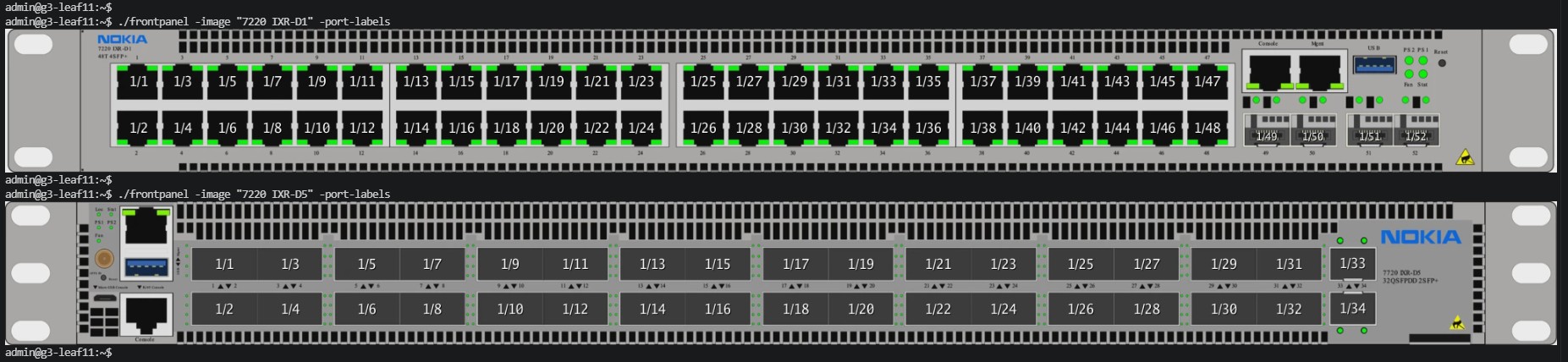
The image parameter, as mentioned in the bare run, requires an input string, the model name of the switch. Try to view the front panel of another models such as the 7220 IXR-D1 or 7220 IXR-D5 models, with port labels showing!
Info
The complete model name is required. Don't forget to put it between quotes.
Note that not all models are supported. Refer to the srl-frontpanel repo for the list of supported models.
IXR-D1 and IXR-D5 Front Panel
Enter the following commands to view the 7220 IXR-D1 and 7220 IXR-D5 models.
Just like the CLI plugin, the rendered front panel is an inline image (the URL is not shown here), so you will only see it in a terminal that supports inline images.
For the final challenge of this task: use the front panel app to display the front panel of a switch with ports ethernet-1/2 up and ethernet-1/4 down!
Tip
The help output will be very helpful here.
Customized Front Panel output
We can figure out how the port states are passed to the binary by looking at the help output - a JSON string is passed to port-states-json, with each port being a key, and the state being a value.
To avoid issues with quotes, we will use single quotes to enclose the JSON string, and double quotes inside the JSON.

Congrats! You have mastered the SR Linux Front Panel application!
5. Summary and review#
If you got this far, you have:
- Added a custom catalog and installed an application from it in EDA
- Used the installed workflow to deploy the SR Linux Front Panel application
- Tried out an experimental CLI plugin that leverages modern terminal technology to bring your network CLI experience to the 21st century
The Front Panel application you tried out here is also available to install on actual SR Linux switches - maybe it will help you solve an operational problem in your own network!
We hope you found this information useful and learned lots, and that you enjoyed this SReXperts (h)ac(k)tivity!
Now go on and take a crack at another one!
Where is the workflow code?
If you were asking yourself "Where is the workflow code? How does it embed the application binary into the workflow?" - you were asking all the right questions!
We are currently working on publishing the SDK for EDA workflows, and once it is available, you will be the first to know if you join our Discord server!